
Speed up wordpress site? If you’ve ever sat there watching your homepage crawl to life while a visitor gives up and hits the back button, you already know why speed matters. It’s not just annoying it costs you rankings, sales, and trust. Google’s made it pretty clear that page speed is a ranking factor, and honestly, visitors these days have even less patience than the algorithm does.
The good news? Most of the sites we sort out at Olaxon Web Studio aren’t slow because WordPress itself is a bad platform. They’re slow because of a handful of avoidable mistakes a bloated theme here, an unoptimised image there, a hosting plan that was never built for the traffic it’s now carrying. Fix those, and you’ll be surprised how quick a WordPress site can actually load.
Here are the ten changes that make the biggest difference, in the order we’d tackle them ourselves.
1. Speed up WordPress Site by Choose Hosting That’s Actually Built for it
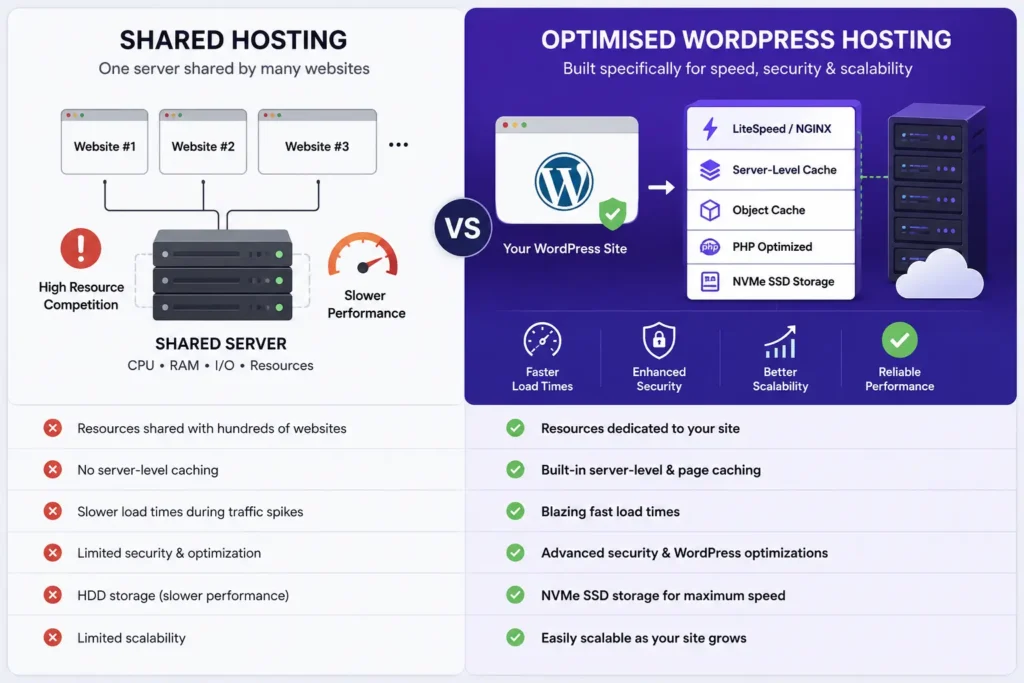
This is the one people skip because it feels like “just infrastructure,” but it’s the foundation everything else sits on. Shared hosting bought purely on price tends to cram hundreds of sites onto one server, and yours gets whatever CPU is left over once everyone else has had their share.
Look for hosting that’s specifically optimised for WordPress server level caching, LiteSpeed or Nginx instead of plain Apache, and NVMe storage. If you’re already paying for cheap hosting and hitting a ceiling, this is usually the first upgrade that unlocks everything else.
2. Pick a Lightweight Theme
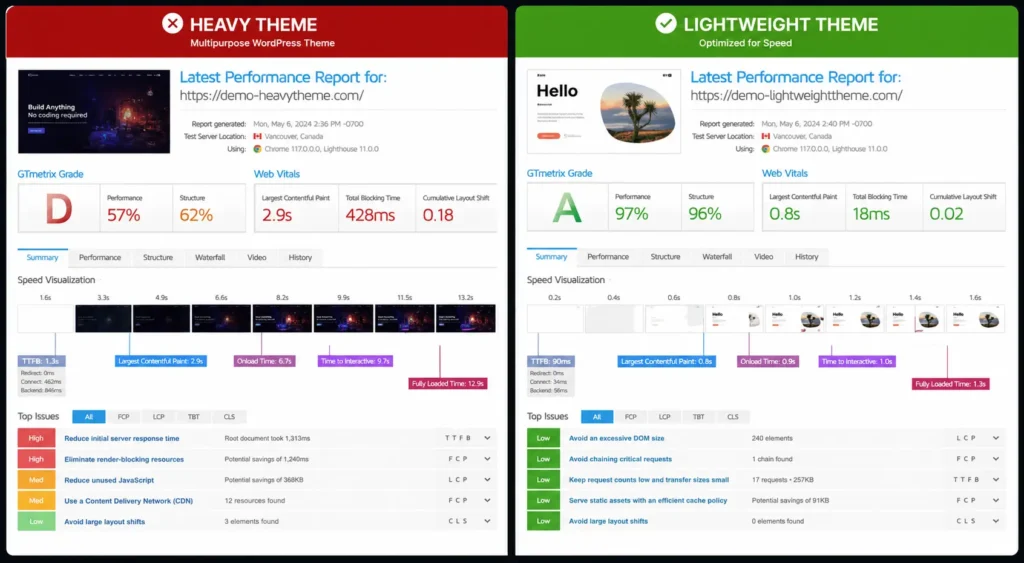
A theme loaded with animations, sliders, and page builder shortcodes you’ll never touch is dead weight on every single page load. Before you fall in love with a theme because of its flashy demo site, check its actual page weight and how many HTTP requests it fires off on a blank page.
If you’re building in Elementor, pair it with a genuinely lightweight base theme (Hello Elementor is still a solid, no nonsense choice) rather than a heavy multipurpose theme trying to do everything under the sun.
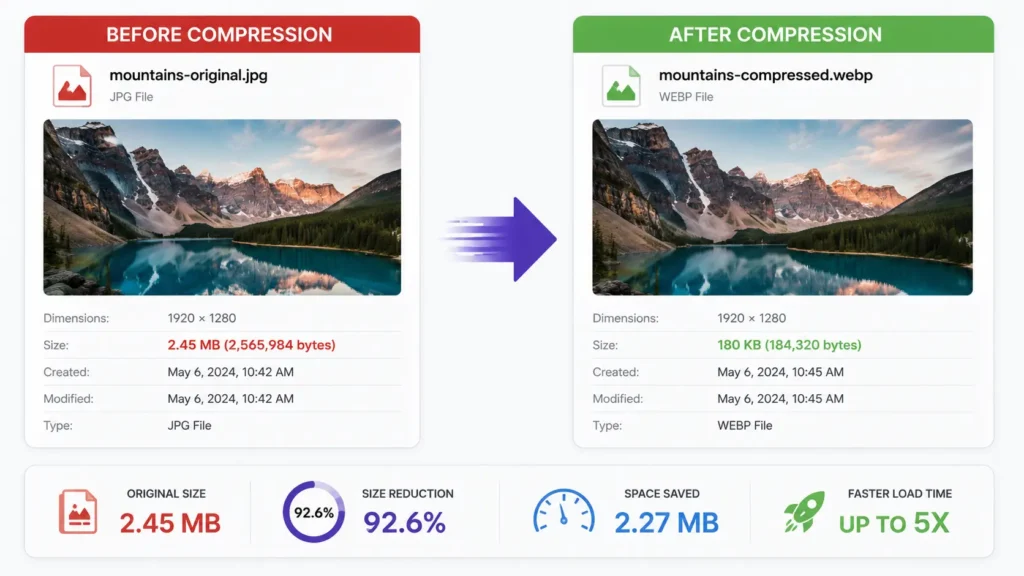
3. Compress and Resize Every Image Before You Upload
Images are almost always the single biggest contributor to a slow page. It’s not enough to just drop in a photo straight off your phone or a stock site resize it to the actual dimensions it’ll display at, and compress it before it even touches your media library.
Use WebP where you can, and run everything through a compression tool (ShortPixel and Imagify are both solid, and most plugins will auto convert to WebP for you going forward too).
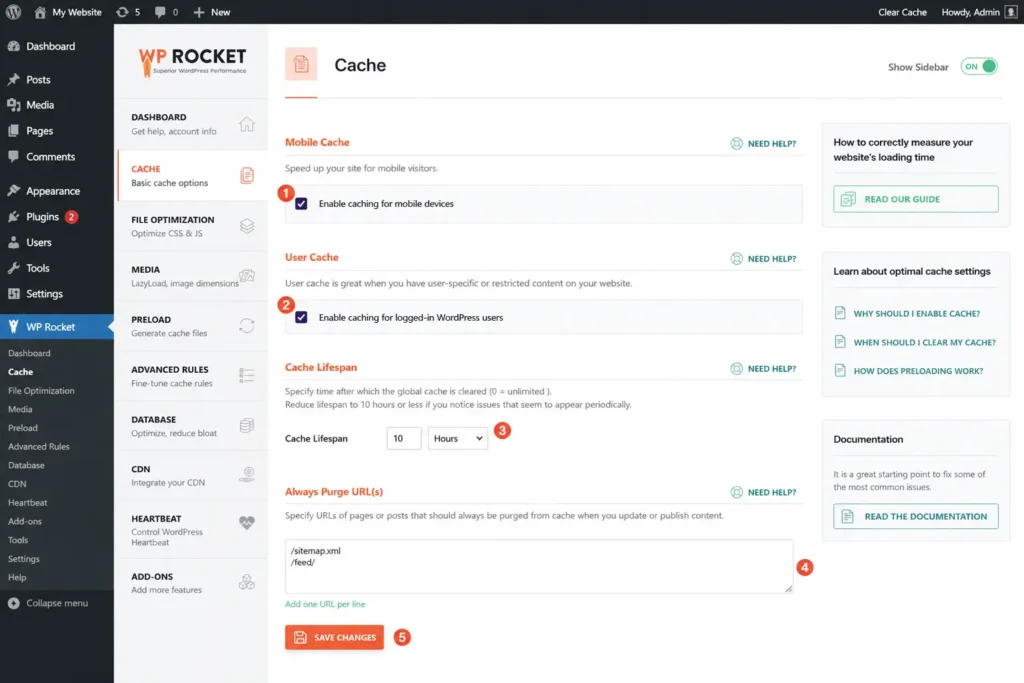
4. Set Up a Proper Caching Plugin
Every time WordPress serves a page, it’s rebuilding it from the database on the fly unless you’ve got it cached. Caching plugins generate a static HTML version of your pages so the server doesn’t have to redo that same work for every single visitor who lands on it.
WP Rocket is the one we reach for most on client sites because the setup is genuinely straightforward, but free options like LiteSpeed Cache (if your host supports it) or WP Super Cache do the job just as well.
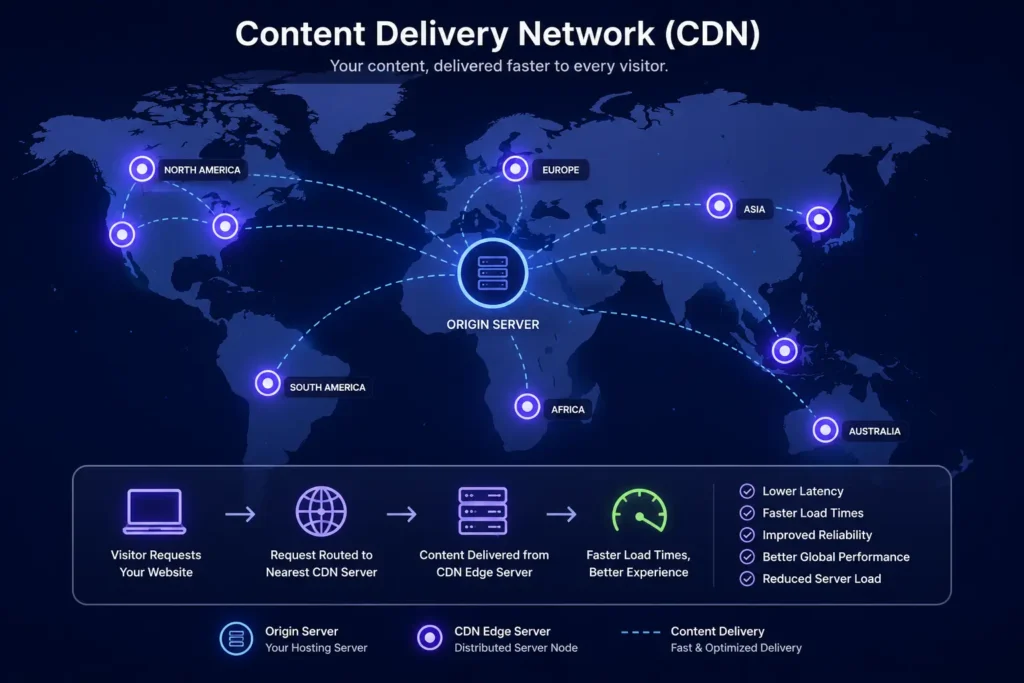
5. Use a Content Delivery Network (CDN)
If your visitors are sitting in Cape Town or Joburg but your server’s hosted overseas, that distance adds real load time. A CDN stores copies of your static files (images, CSS, JS) on servers scattered around the world, so visitors load from whichever one’s closest to them.
Cloudflare’s free tier is a great starting point and takes maybe ten minutes to get going.
6. Minify and Combine CSS/JavaScript Files
Every CSS and JS file your site loads is a separate request to the server. Minifying strips out unnecessary characters and whitespace from your code, and combining files (where it’s safe to) cuts down the number of requests altogether.
Most caching plugins have this built in already, so it’s often a checkbox rather than a whole separate project — just test your site properly afterward, because every now and then combining scripts can break something visually.
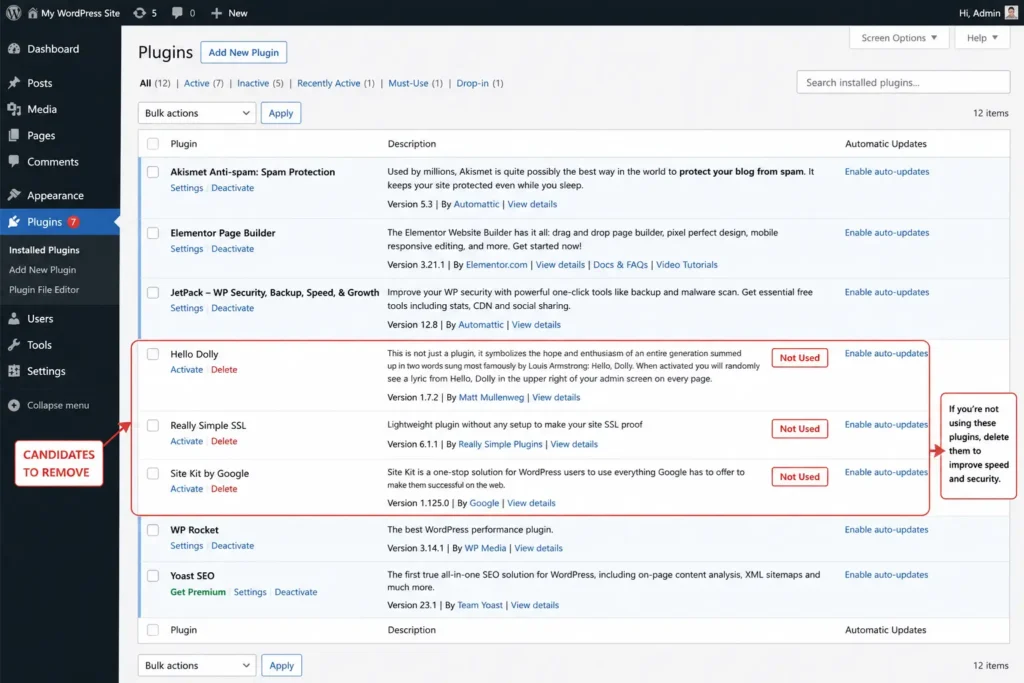
7. Get Rid of Plugins You Don’t Actually Use
Every plugin you install adds its own code, its own database queries, and sometimes its own scripts loading on every page whether you’re using it or not. It’s worth going through your plugin list every few months and asking yourself honestly whether each one is still earning its keep.
Deactivating isn’t enough delete the ones you’re not using. And where two plugins are doing the same job, just pick one.
8. Optimise Your Database
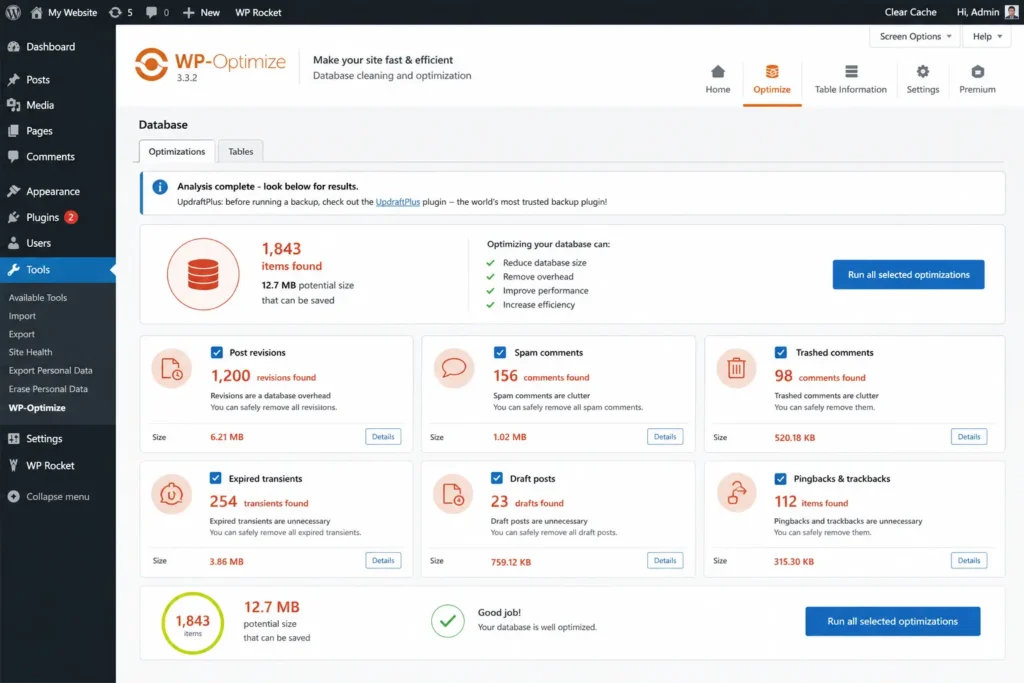
Your WordPress database quietly piles up junk over time post revisions, spam comments, expired transients, abandoned draft posts. None of it’s doing your site any favours, and all of it adds a bit of weight to every database query.
A plugin like WP Optimize or Advanced Database Cleaner can clear this out safely in a few clicks. Just always back up first, no shortcuts there.
9. Turn On Lazy Loading for Images and Videos
There’s no reason to load every image on a long page the moment someone lands on it especially the ones sitting below the fold that they may never even scroll down to. Lazy loading defers those images until the visitor actually scrolls near them.
WordPress has had this built in natively since version 5.5, but a good caching or image plugin usually gives you a bit more control over how it behaves.
10. Run Regular Speed Tests and Actually Act on Them
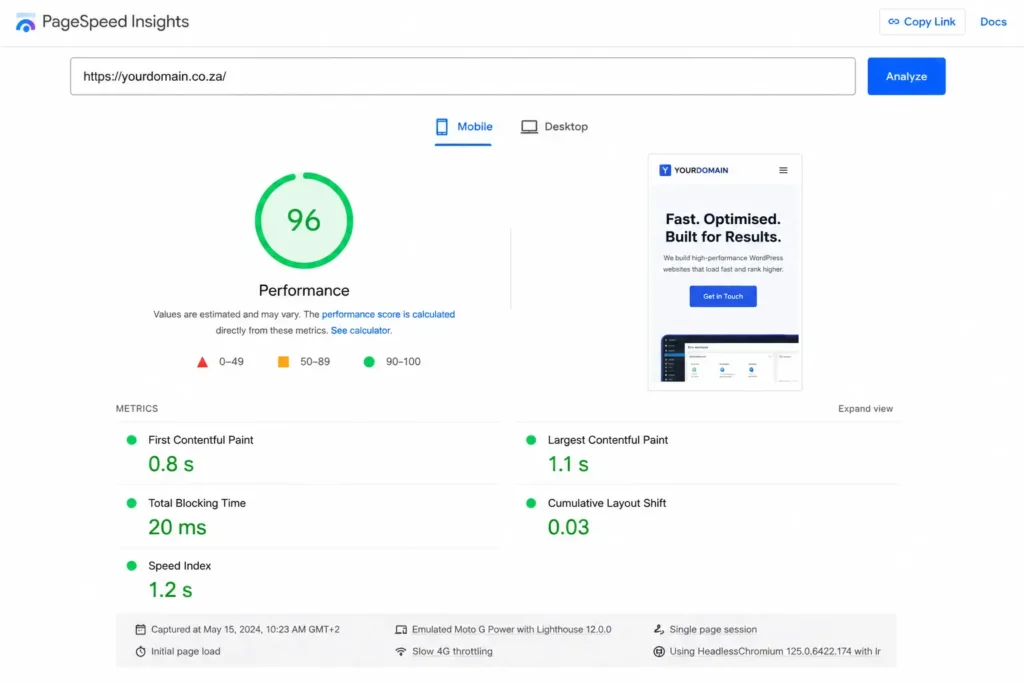
None of the above counts for much if you set it up once and never check back in. Tools like Google PageSpeed Insights, GTmetrix, and Pingdom will show you exactly what’s slowing you down right now not six months ago.
Make it a habit to test after any big change (new plugin, new theme, new page builder template) rather than just assuming everything’s still fine.
Bringing It All Together
None of these fixes are complicated on their own, but stacked together they compound. A site running on solid hosting, a lightweight theme, compressed images, and proper caching isn’t just fast it’s a genuinely better experience for every visitor who lands on it, and Google notices that too.
If you’d rather have someone handle the technical side while you focus on running your business, that’s exactly the kind of thing we do at Olaxon Web Studio building fast, secure WordPress sites from the ground up rather than patching up slow ones after the fact.